
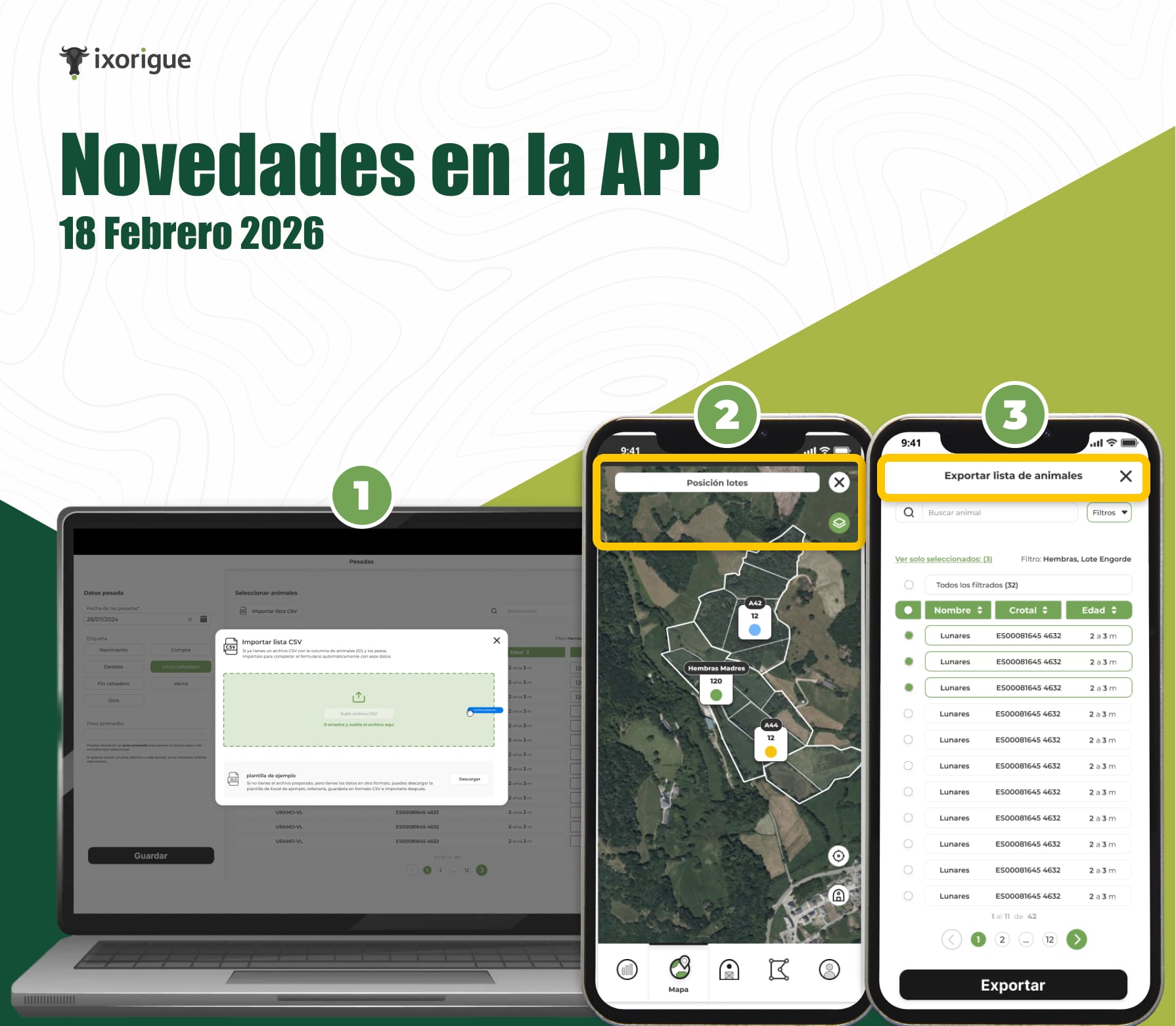
1. Importing Animals Using CSV (Desktop Mode)
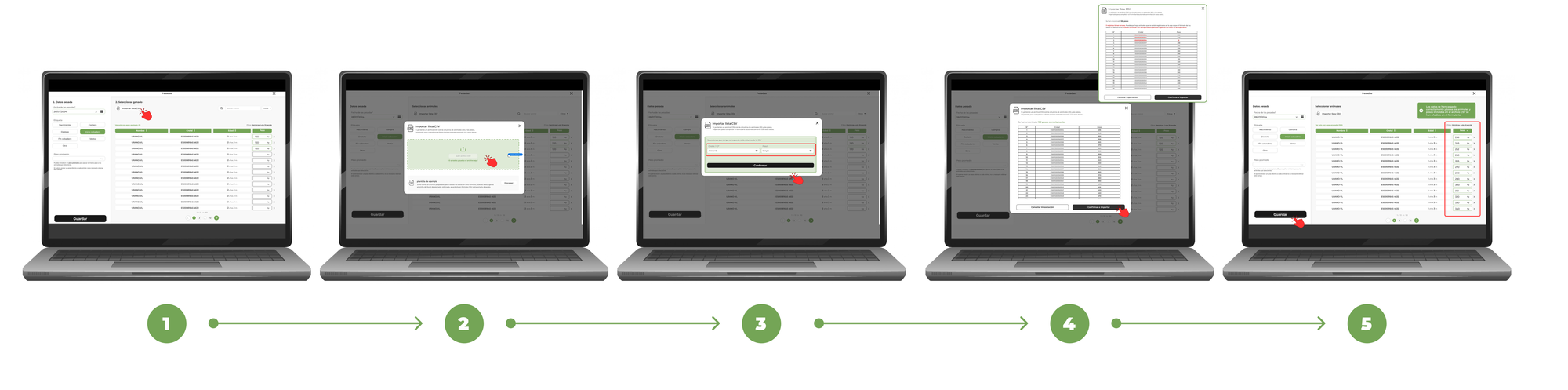
From now on, you can import a CSV file into the app's forms to automatically select animals.
When you're in any form in desktop mode, you'll see the "Select from CSV" button.
1. Tap on "Select from CSV"
A window will open to import the file.
2. Upload your CSV file
You can drag it directly or select it from your computer.
If you need to, you can download a sample Excel template to make sure the formatting is correct. After filling in the template , you just have to save it as a CSV and import it from the same button
3. Indicate which columns you want to use
Select which column corresponds to:
- Ear tag (in animal selection)
- Ear tag and weight (in the case of weighed)
4. Review the data before confirming
You'll see a pre-table with the information to be imported.
If there are errors:
- Incorrect rows will be marked in red.
- Those rows will not be imported.
- If no queue is valid, you won't be able to continue.
5. Confirm the import
When confirmed, the animals will be automatically selected or the data will be entered directly into the form.
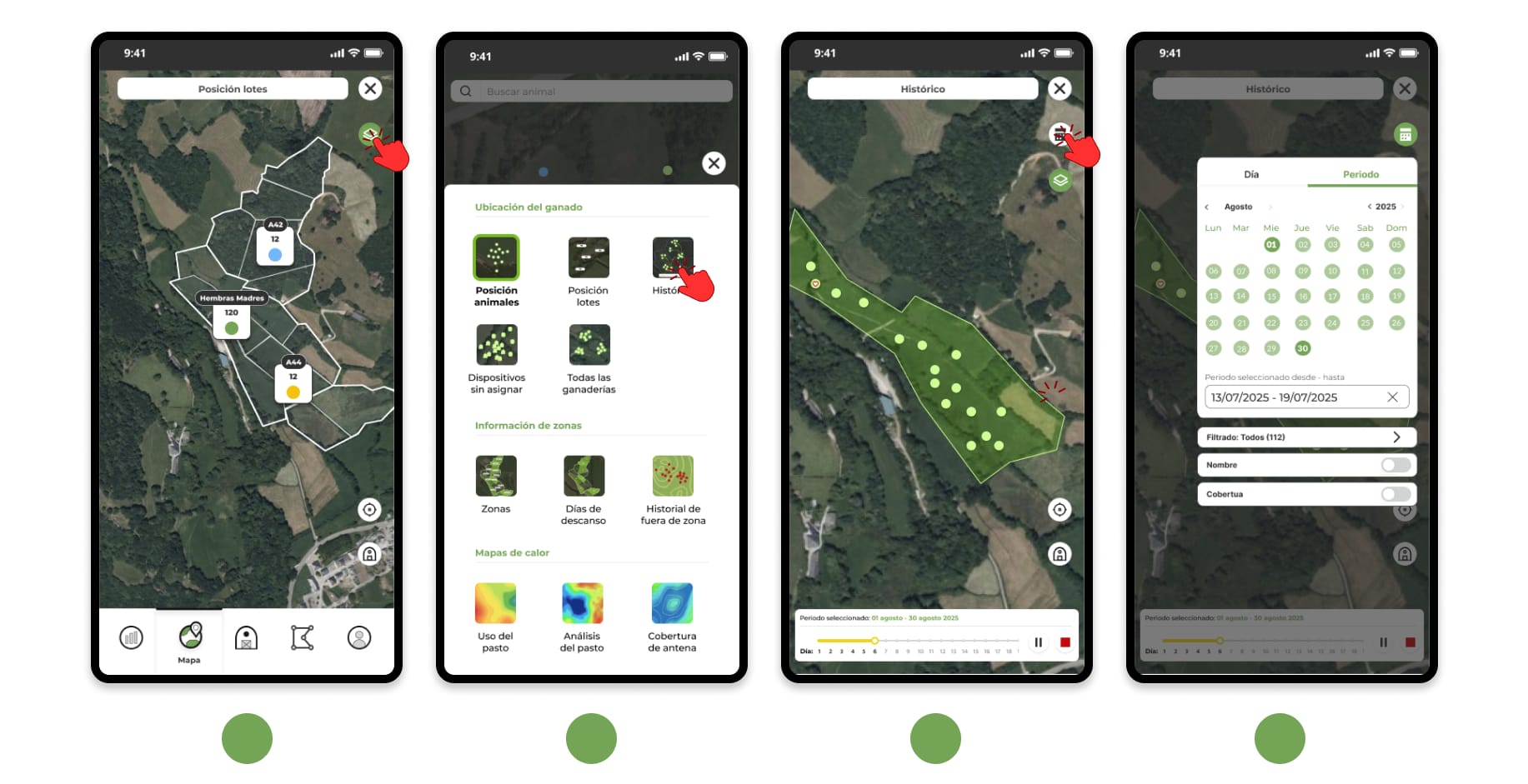
2. Improved visualization and navigation of map layers
We've made using layers more fluid and intuitive:
- The name of the active layer is now displayed at the top.
- You can switch layers without closing the current one.
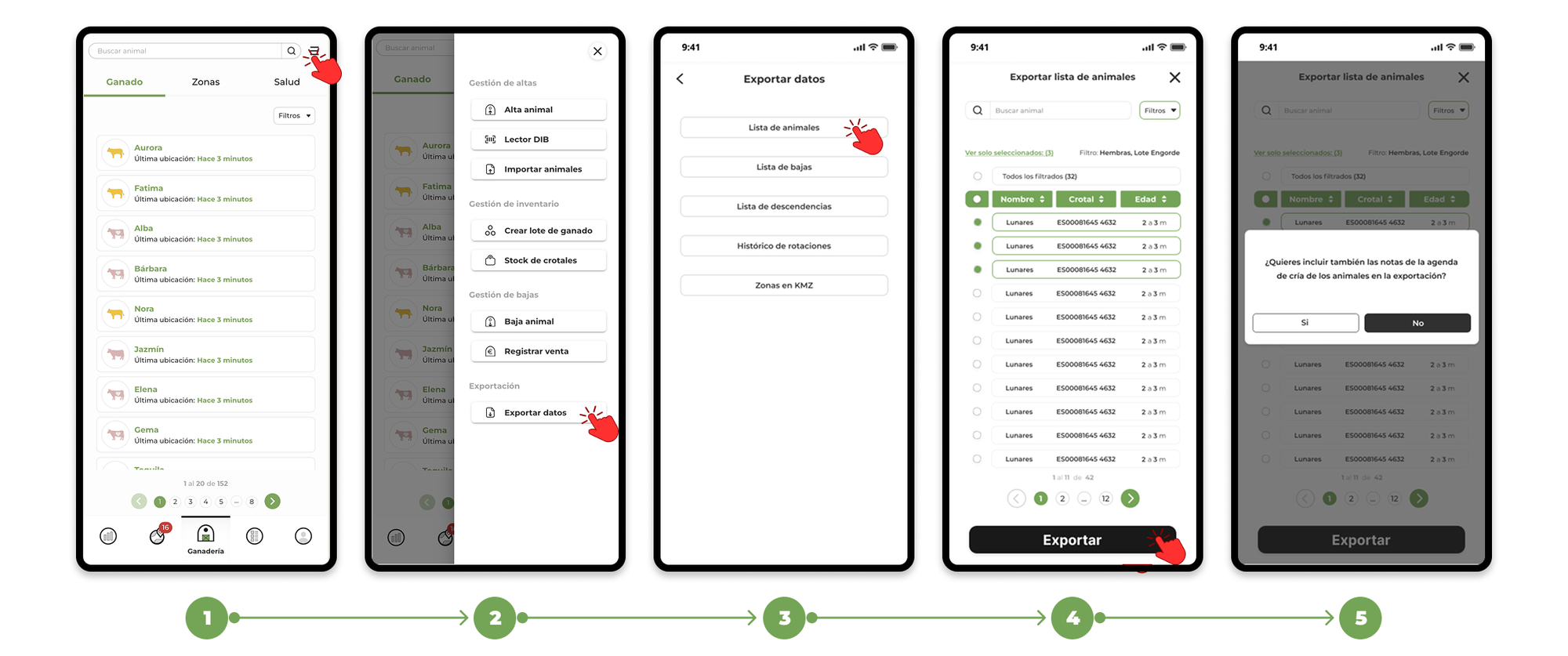
3. More flexible animal export
Now you can:
- Select exactly which animals you want to export.
- Use the usual filters to define the export.
- Decide if you want to include animal notes as well.