

If your antenna is listed as disconnected in the app, follow this guide to identify the cause and resolve the issue before contacting support.
1. Identify your antenna model
The first step is to know what type of antenna you have in your installation. It can be one of three models:
- Milesight SG50
- RAK WisGate Edge Lite 2
- RAK WisGate Edge Pro
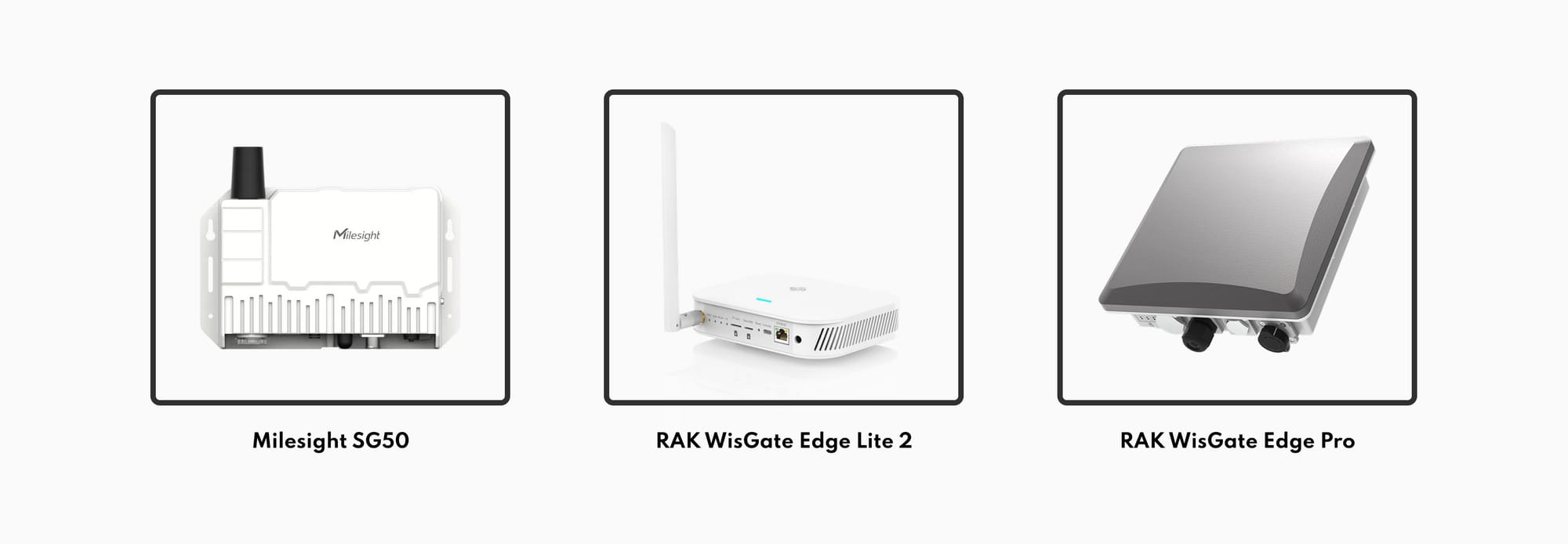
Each one has LED indicators and power systems located in different places, so it is important to recognize the model correctly.
2. Physical inspection of the installation
Before checking the electronic status, check the physical status:
- Properly connected cables
- No damage to equipment
- Closed, moisture-free antenna or protective box
If the antenna is solar-powered, perform this check in the middle of the day, ensuring that the panel receives direct, intense sunlight.
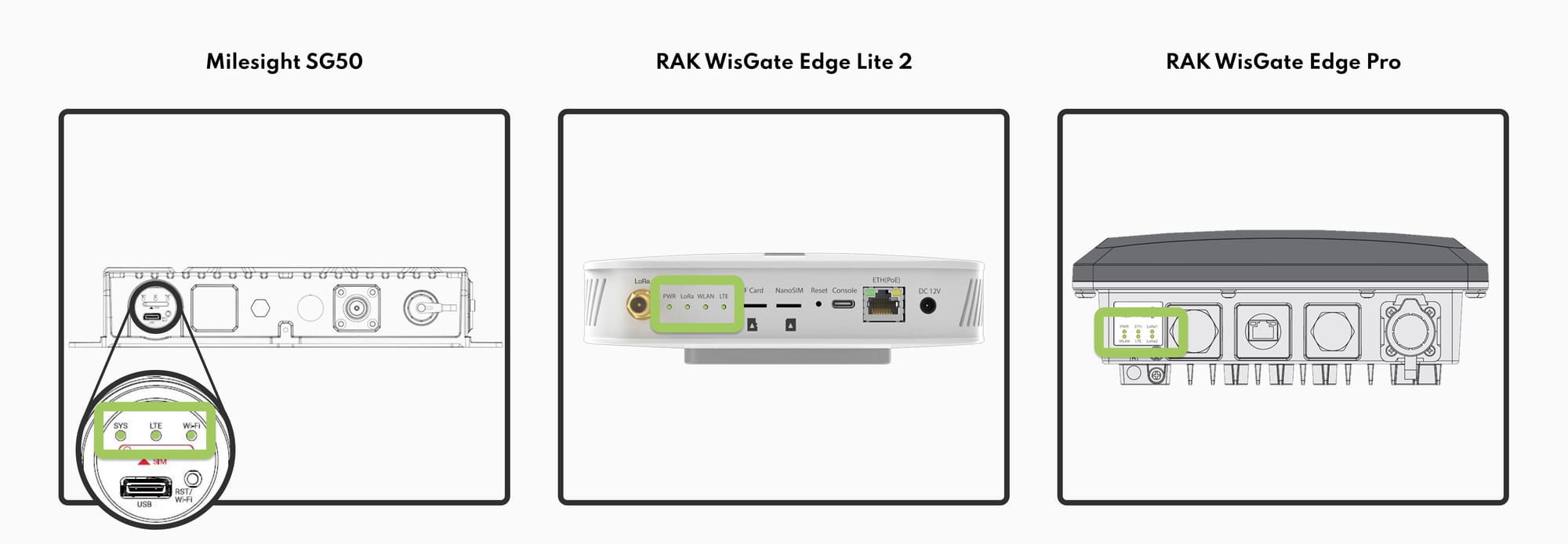
3. Check if the gateway is turned on
Make sure your computer is powered by checking that the LED lights are on.
4. Perform a basic gateway reboot
💡 Important tip:
Do not reboot without taking a photo or video of the gateway's LEDs.
If you later need to contact the support department, this information will be key so that they can quickly identify the previous state of the equipment and speed up the resolution of the incident. Once restarted, the indicators will change and the information will no longer be useful.
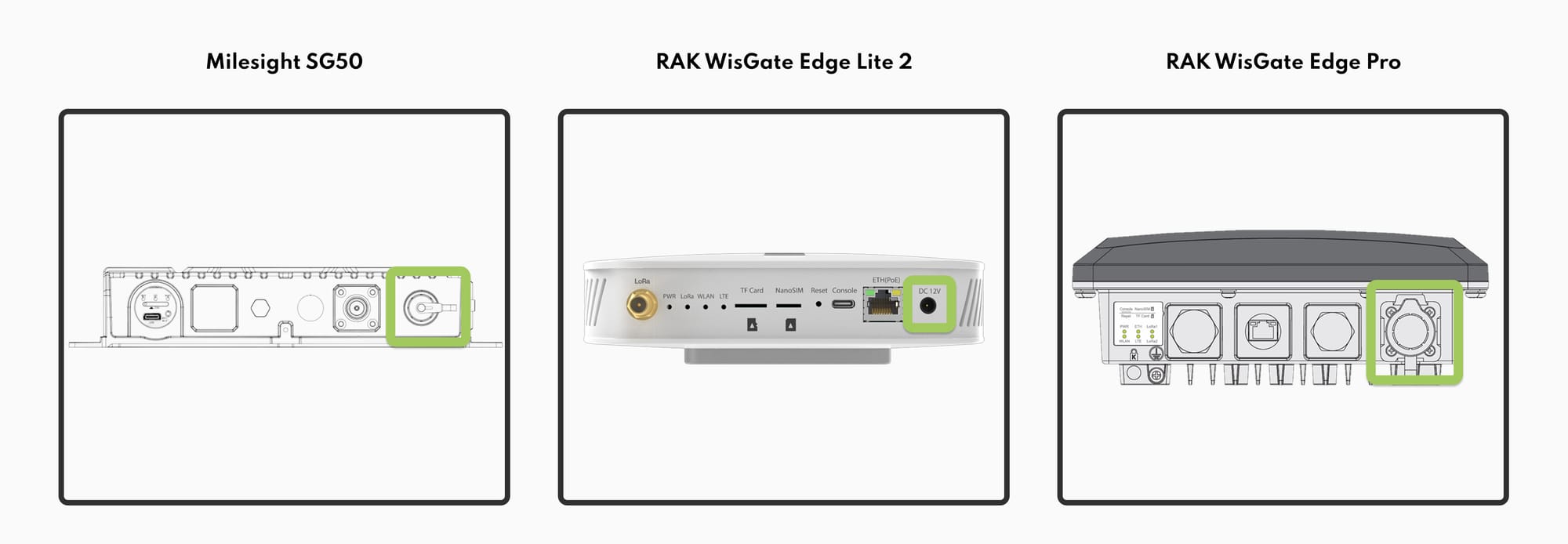
Steps to restart:
- Unplug the power cord.
- Wait 1 minute.
- Reconnect your computer.
⏱ After the restart...
- If everything has been solved, the antenna will appear as connected in the App in about 15 minutes.
- Devices within the coverage range will be automatically reconnected over the next few hours.
⚠️ 5. If the antenna is still disconnected
If, after all the above checks, the antenna continues to appear as disconnected in the App, it is time to contact the support department.
When you do, indicate which steps in this guide you've already done, including the photo or video of the LEDs.
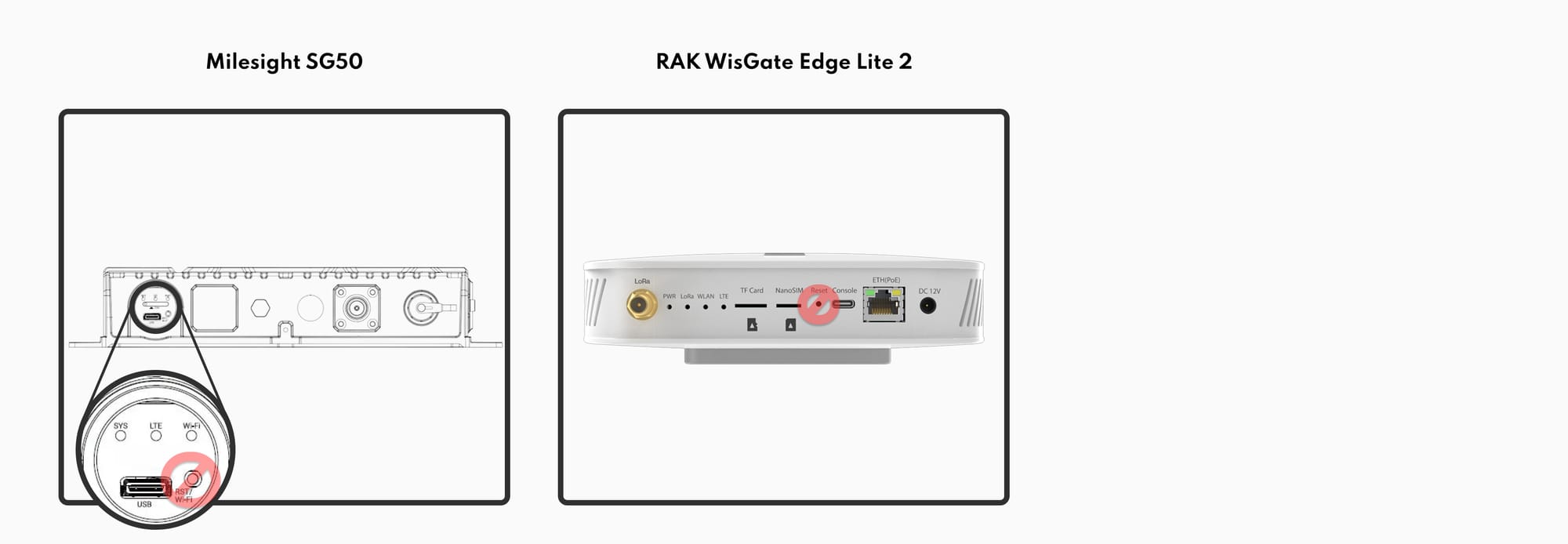
🚫 Important: Do not press the physical reset button
Milesight SG50 and RAK WisGate Edge Lite 2 include a reset button.
You should NOT press it, as this button restores the device to factory settings and removes all its settings.
This would oblige:
- Recover the equipment
- Reinstall your settings
- Reprogram it completely