
You can record your animals' weights in three ways:
- Record an individual weight from an animal's card
- Record multiple weights at once
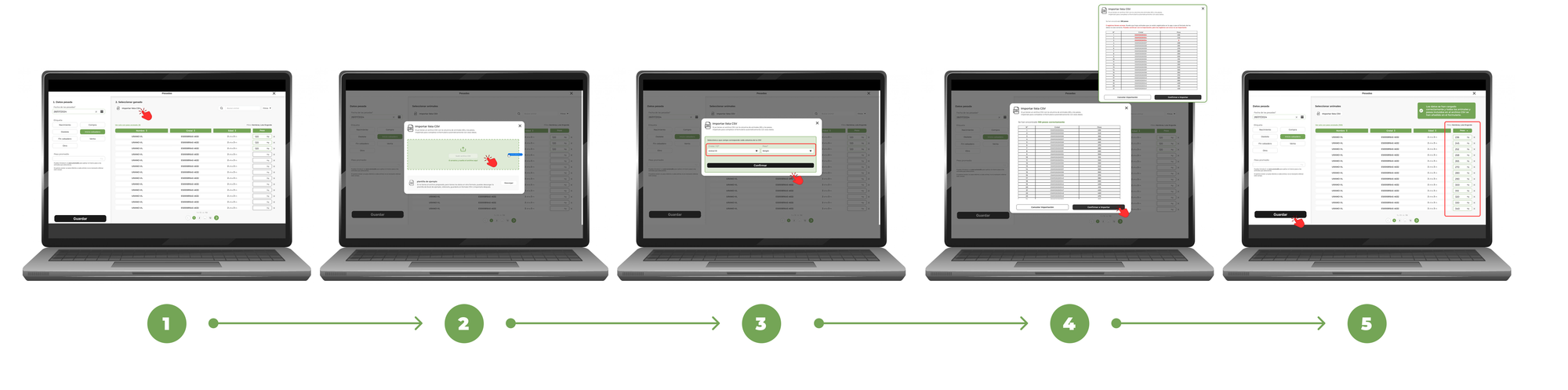
- Import a CSV file with the weighings (only from computer)
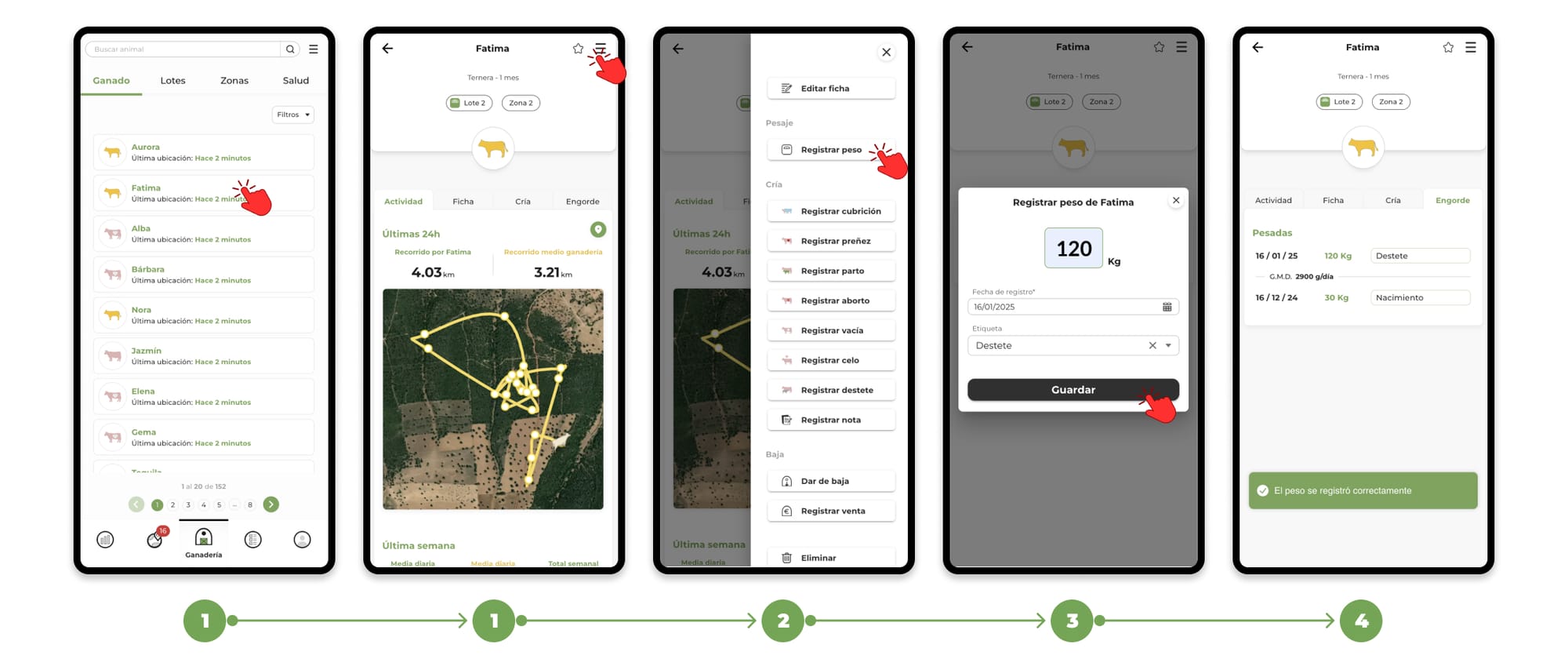
1. RECORDING INDIVIDUAL WEIGHT FROM AN ANIMAL'S FILE
- Access an animal's profile and tap on the menu located in the top right corner. This will open a drop-down menu; select the "Record Weight" option.
- When you click on Register weight, a form will open where you can:
- Write down the weight of the animal.
- Select the date of the weigh-in.
- Add a weight tag , which will allow you to get more detailed statistics on the fattening of your animals.
- Once finished, click on "Save".
- The weights will be registered and you can consult them both at:
- The "Health" section.
- The individual file of each animal.
2. RECORD MULTIPLE WEIGHTS AT ONCE
This option allows you to record the weight of multiple animals in a single operation.
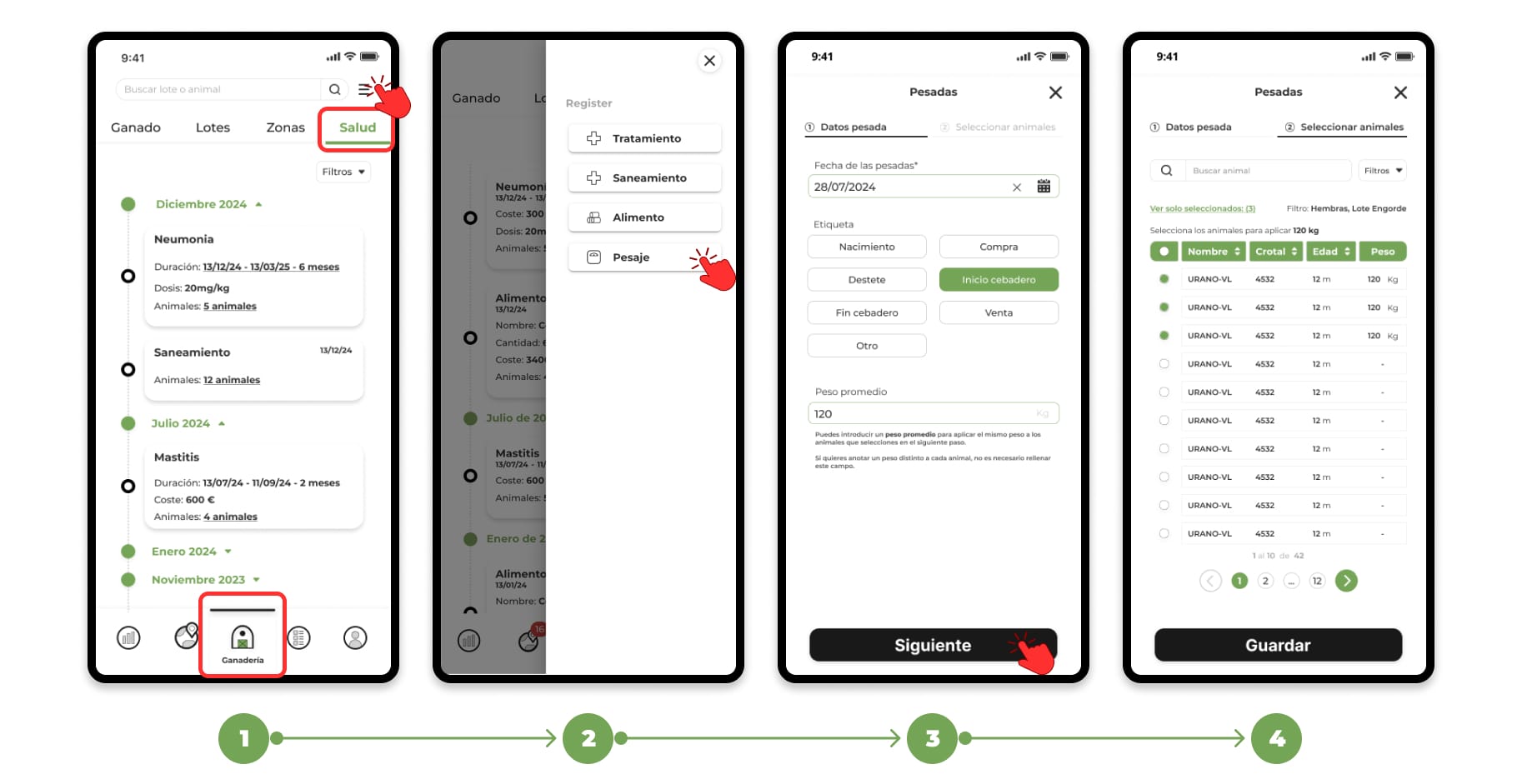
- Go to "Livestock" and enter the "Health" section.
- Tap the menu in the top right corner and select "Weigh-in."
- On the first screen of the form you can add the data of the weighing:
- Indicates the date of weighing.
- Add a tag (it will be the same for all selected animals).
- Optionally, you can enter an average weight that will be automatically assigned to all the animals you select later.
If you want to enter a different weight for each animal, leave the average weight field empty.
When you fill in this information, click on "Next".
- Select Animals and Assign Weights
On the next screen you will see the complete list of animals.
- 4.1 If you have NOT indicated an average weight: You can manually enter the individual weight of each animal.
- 4.2 If you DO have indicated an average weight: You will only have to select the animals to which you want to assign that weight.
You can use the filters and search engine to locate specific animals or narrow down the list according to your needs.
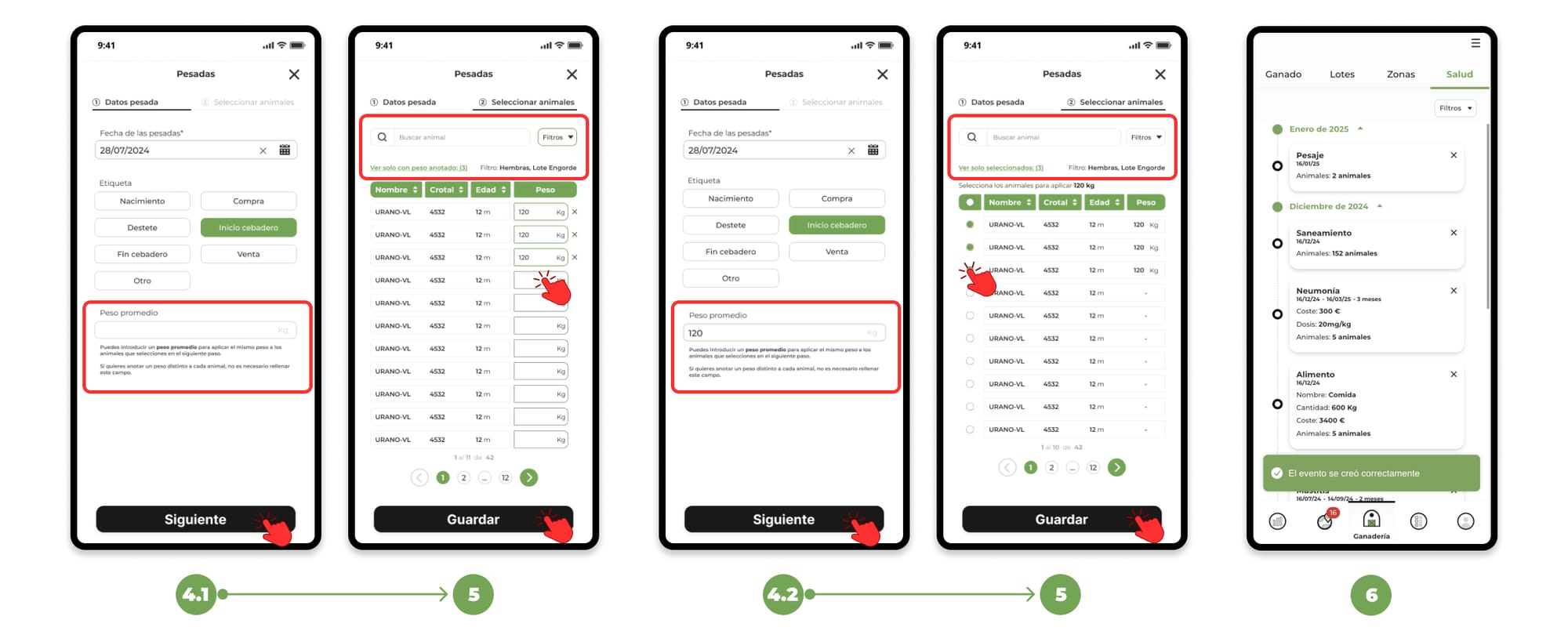
- Once finished, click on "Save".
- The weights will be registered and you can consult them both at:
- The "Health" section.
- The individual file of each animal.
3. IMPORT CSV FILE WITH THE WEIGHTS.
(ONLY FROM COMPUTER)
This option is ideal if you work with electronic scales or external registers.
- Go to "Livestock" and enter the "Health" section.
- Tap the menu in the top right corner and select "Weigh-in."
- On the first screen of the form you can add the data of the weighing:
- Indicates the date of weighing.
- Add a tag (it will be the same for all selected animals).
- Upload the file: Click on the "Import CSV list" button above the list of animals.
- A window will open where you can drag your file or select it from your computer.
If you do NOT have the file in CSV format:
- Download the Excel template.
- Enter the details (animal ID and weight).
- Save the file in CSV format.
- Import it from this same screen.
- Once the CSV file is uploaded, indicate which columns to use from the drop-downs and click on "Confirm".
- Validation and saving
- 7.1 If there is an error in the data, the app will alert you to correct it.
- 7.2 If everything is correct, click on "Confirm and save import".
- You will see the list of animals with the weights loaded and you will be able to save the record.
The data will be available both at:
- The "Health" section
- The individual file of each animal