
This guide explains how to create a new zone within the application, either by manually drawing it on the map or by selecting the plots from the Sigpac system.
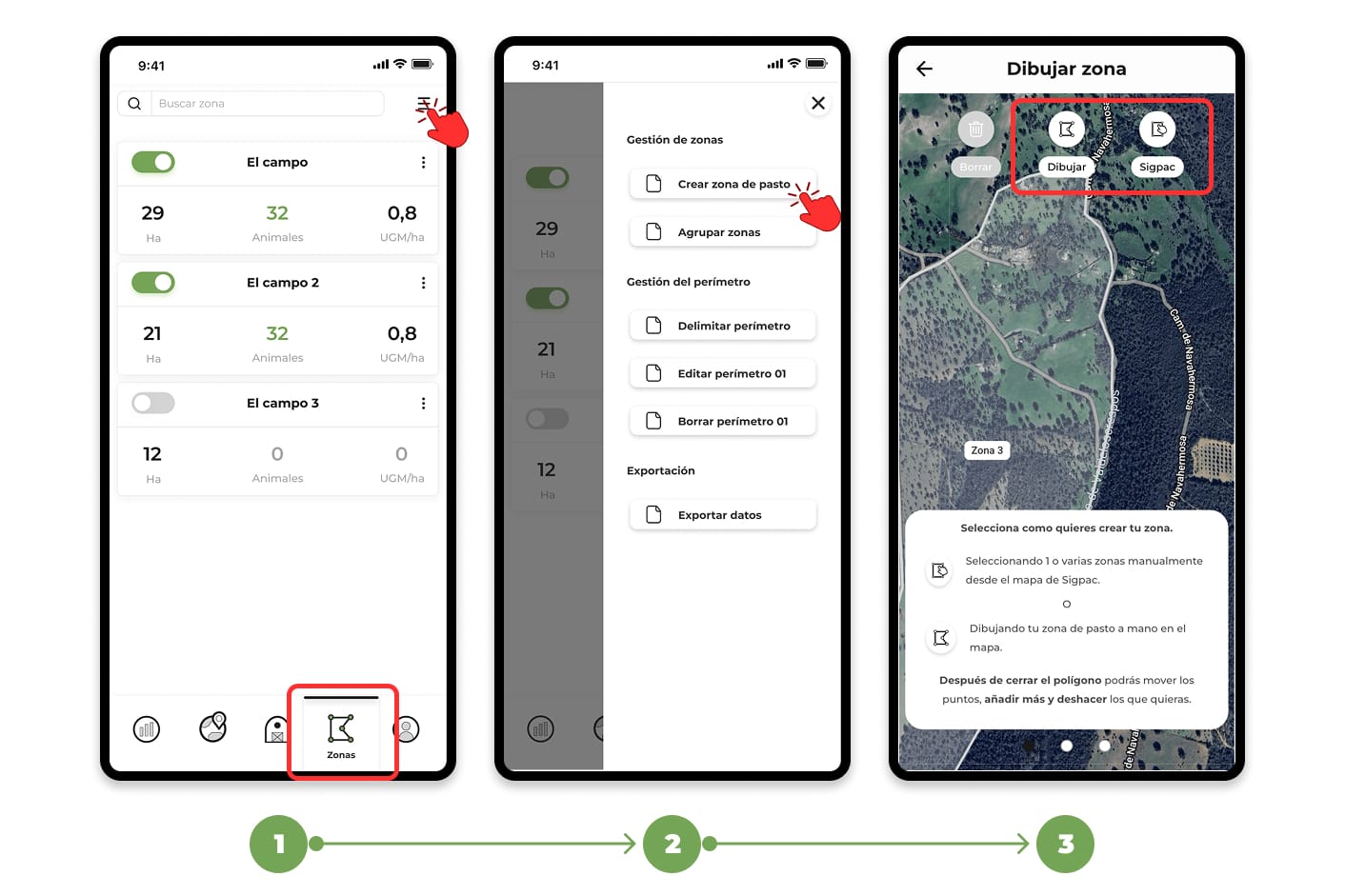
1. Access the zones section
- Access the zones section and go to the menu located in the upper right corner.
- Select the "Create zone" option.
- A screen will open on the map with two options to delimit the area.
2. Delimit the area
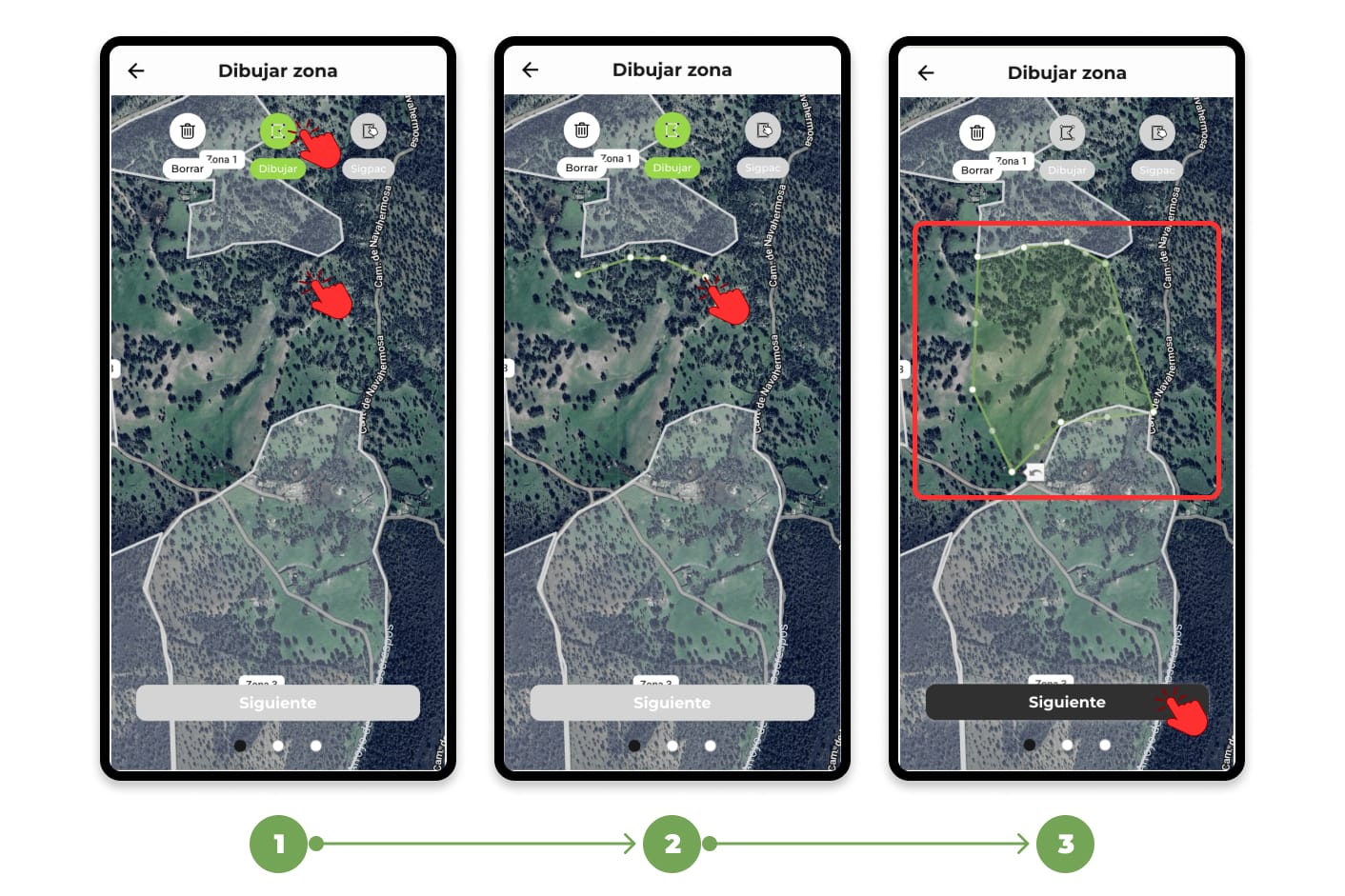
Option 1: Draw manually on the map
- Tap the "Draw" button to start adding points.
- Mark the points on the map that will define the boundaries of the area.
- To finish, close the polygon by clicking on the first marked point (it will flash orange). Adjust the points if necessary and press "Next".
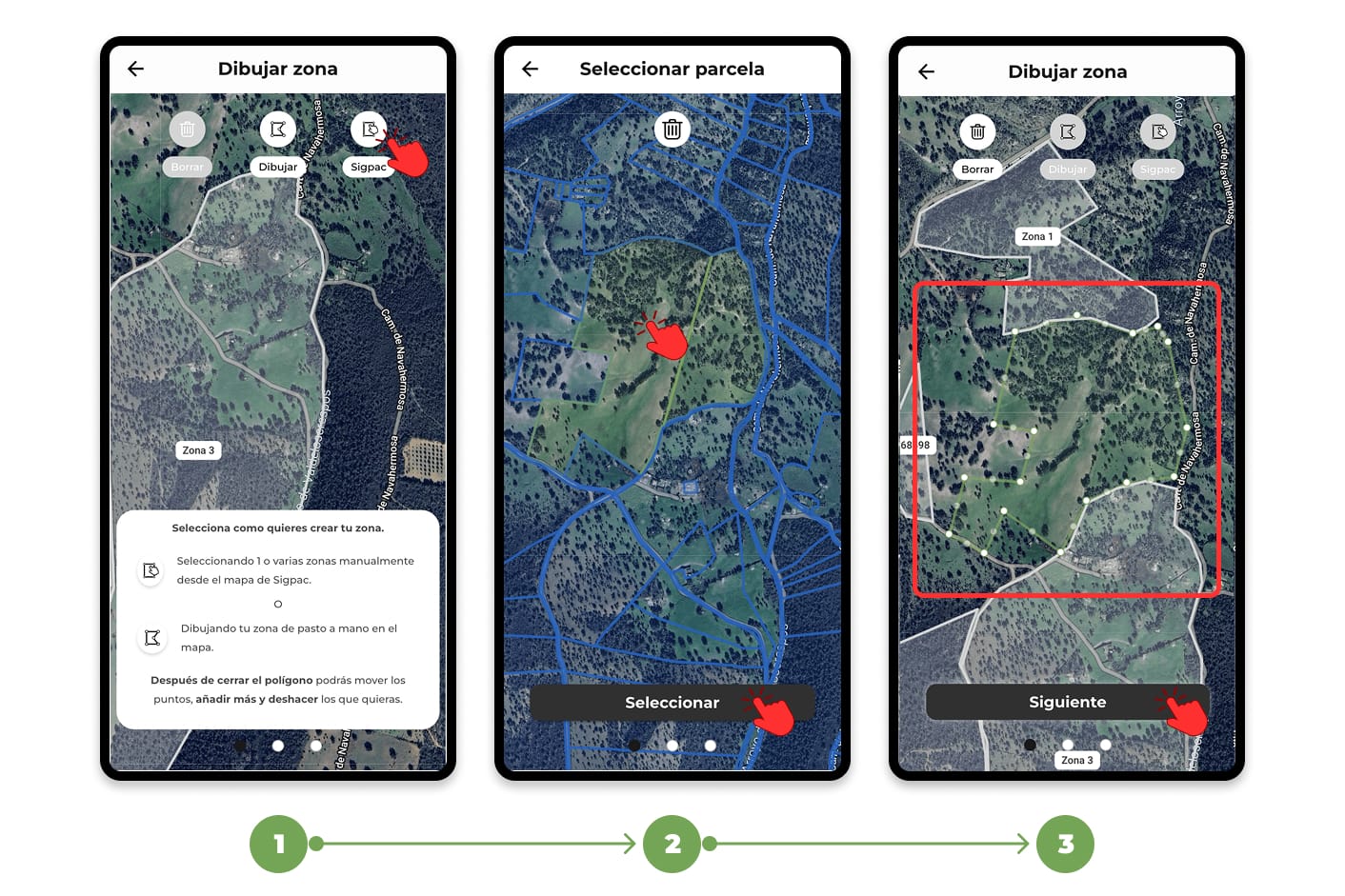
Option 2: Use Sigpac Plots
- Press the "Sigpac" button to load the plots.
- Select one or more plots by clicking on them. They will be painted green.
- Press "Select", adjust the boundary points if necessary, and press "Next".
If you select multiple parcels to create a single parcel, make sure that the parcels are connected to each other. If not, you will need to create separate zones.
3. Information about the area
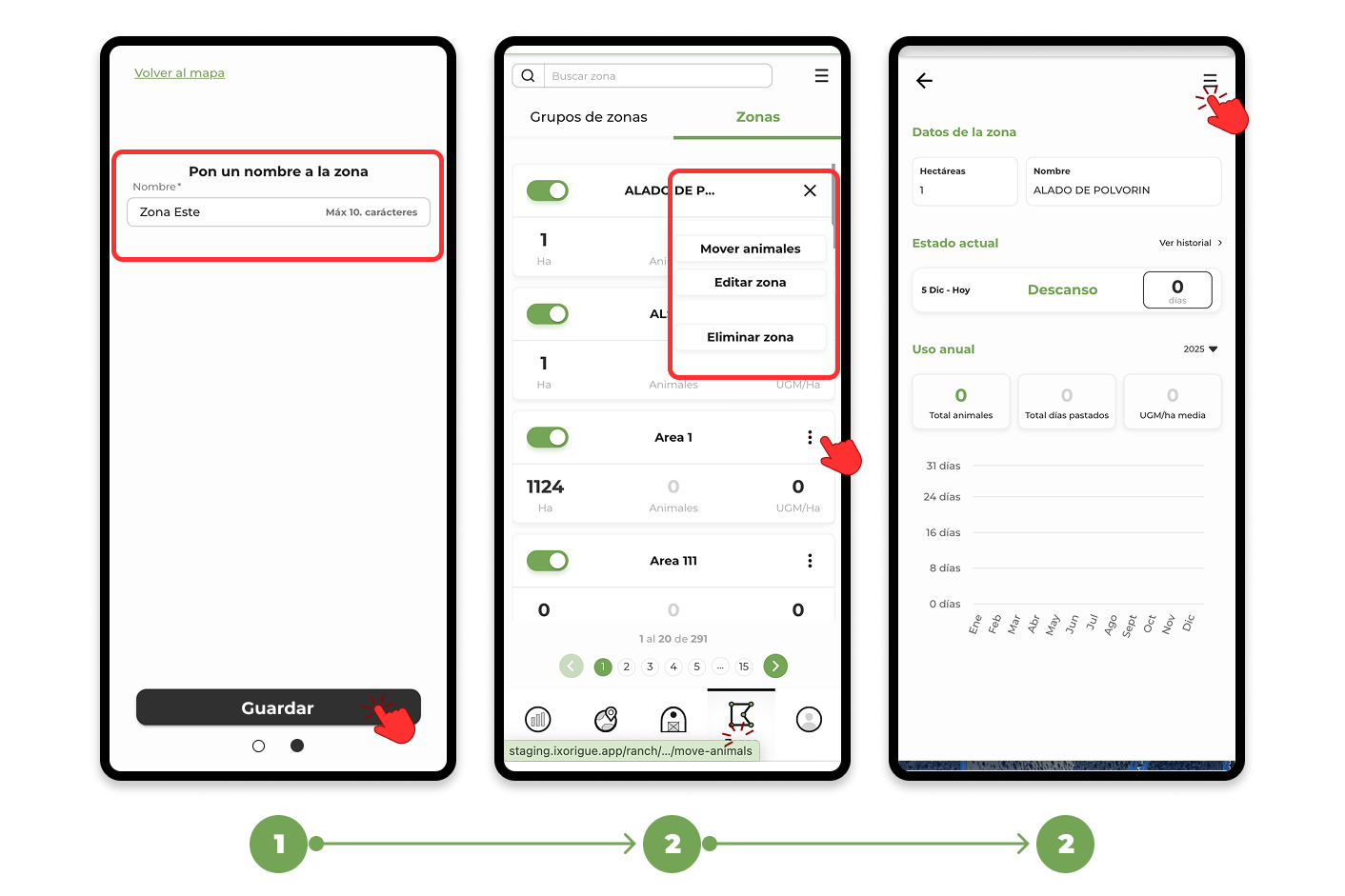
- Type in a name for the new zone and once finished, press "Save" to complete the process.
- If you need to edit or delete a zone after you've created it, you can do so from the zone list or from each zone's tab.
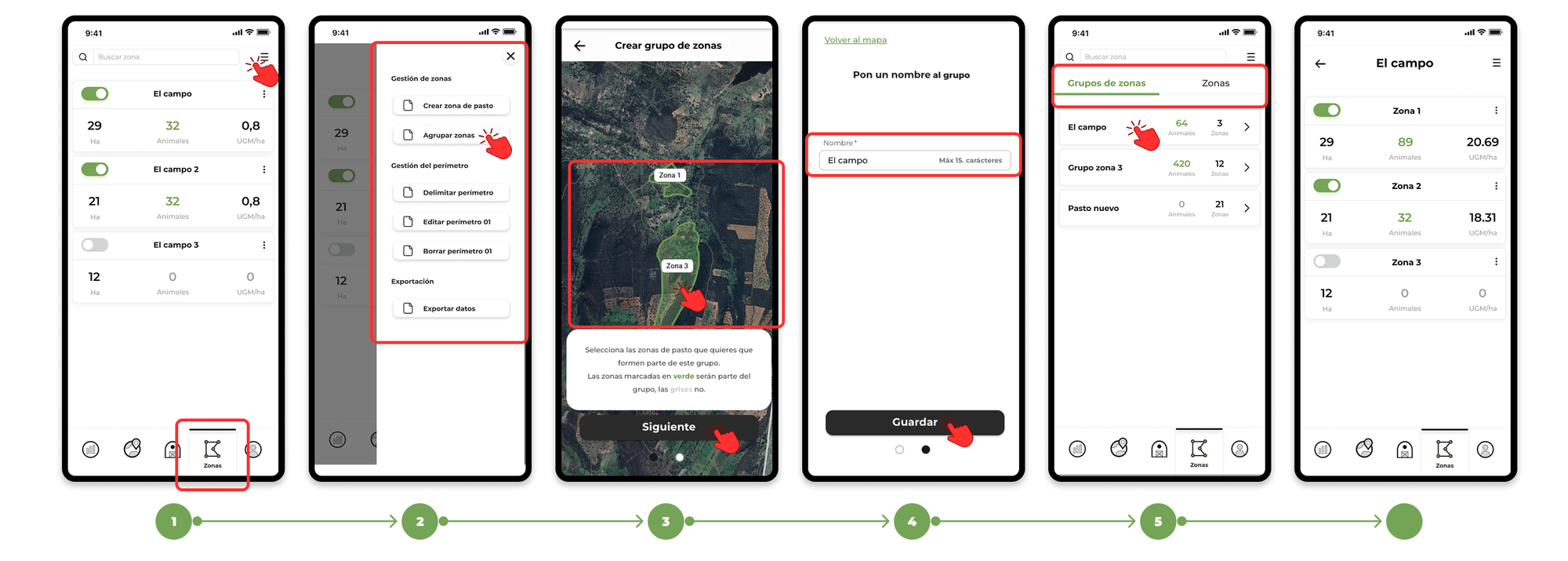
4. Create Zone Groups
If you want to organize your zones better, you can group them into a single group. This is useful if you work with grazing circuits or have a lot of zones to manage.
Steps to group zones:
- Go to the "Zones" section in the app.
- Tap the menu and select "Group Zones."
- A map will be displayed with all the areas. Select the ones you want to group together and press "Next".
- Type in a name for the group and tap "Save."
- On the zones screen, you can toggle between "Zone Group" or "Zones" at the top, depending on whether you want to see grouped zones or individual zones.