

In the Ixorigue app, you can register animals using three different methods:
- Registration by import
- Individual animal registration (Click here to watch this tutorial)
- Registration via DIB reader (Click here to watch this tutorial)
Registration by import
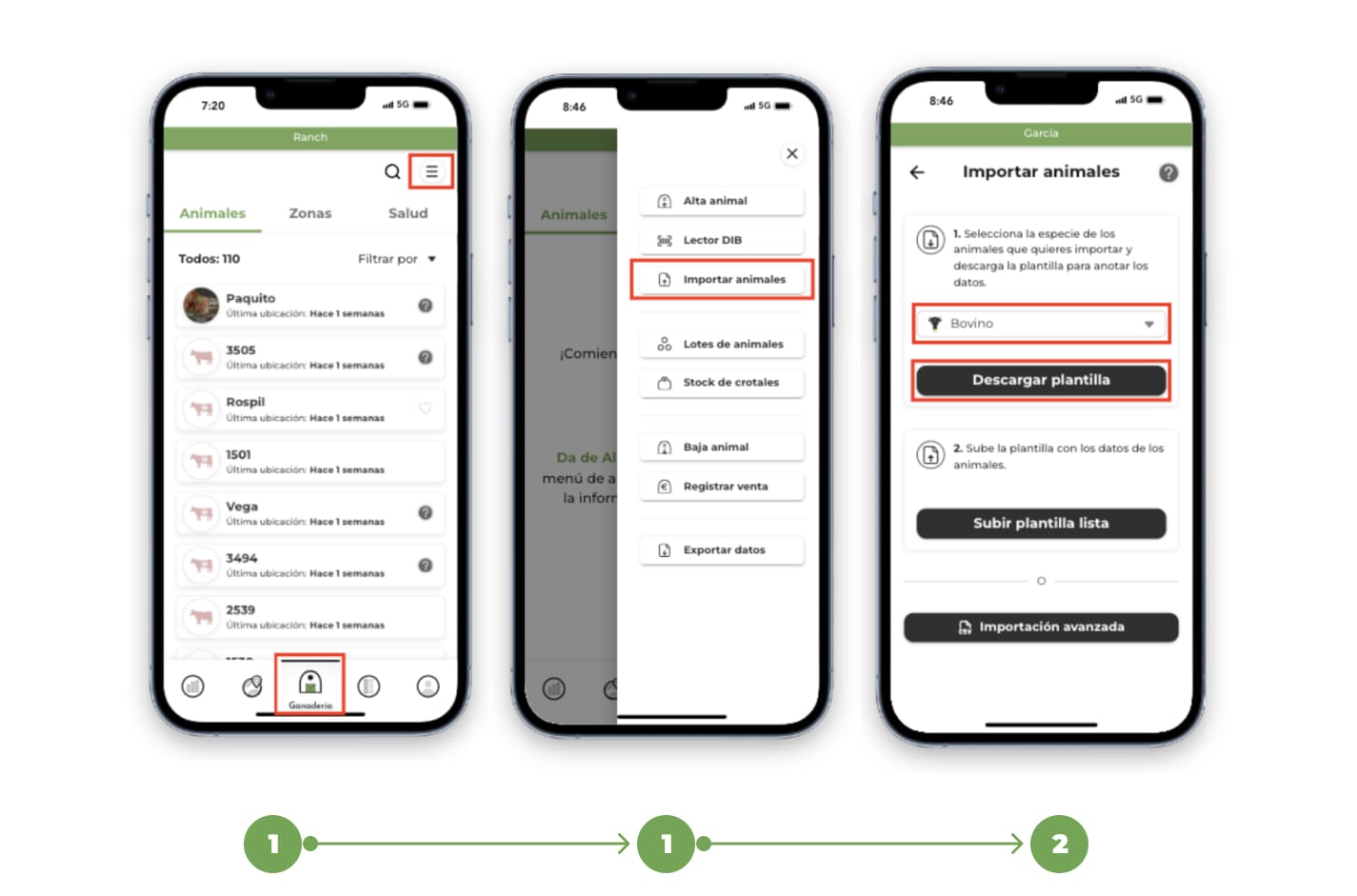
1. Go to the "Livestock" section and click on the "Menu" button located in the upper right corner. From the drop-down menu, select the "Import animals" option.
Download the template
2. Selecting "Import Animals" will open a screen where you can download the template you need. Select the species of animals you want to import and press the "Download Template" button.
Enter data into the template
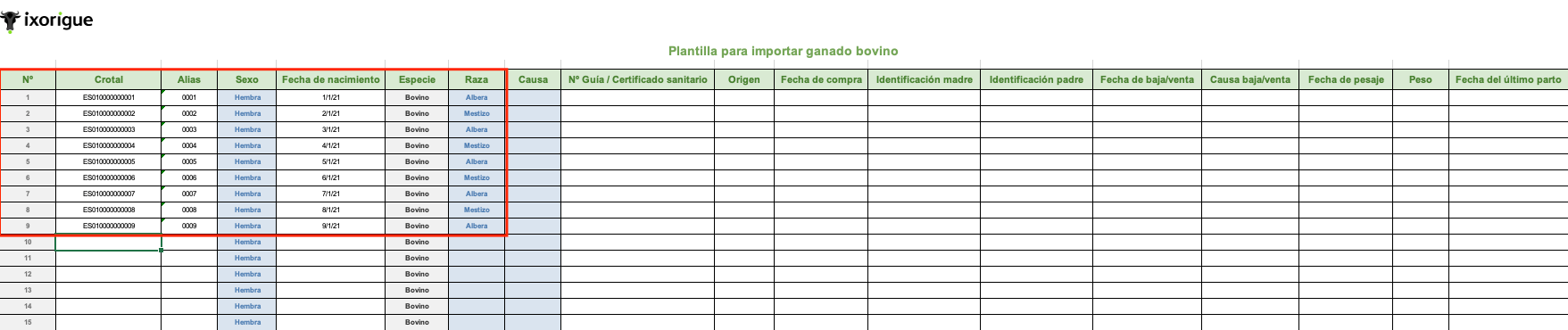
3. Open the downloaded Excel file and enter the data of your animals, fill in the corresponding columns with the information of each animal.
Once you've finished entering all the data, save your changes to the Excel file.
Upload the template
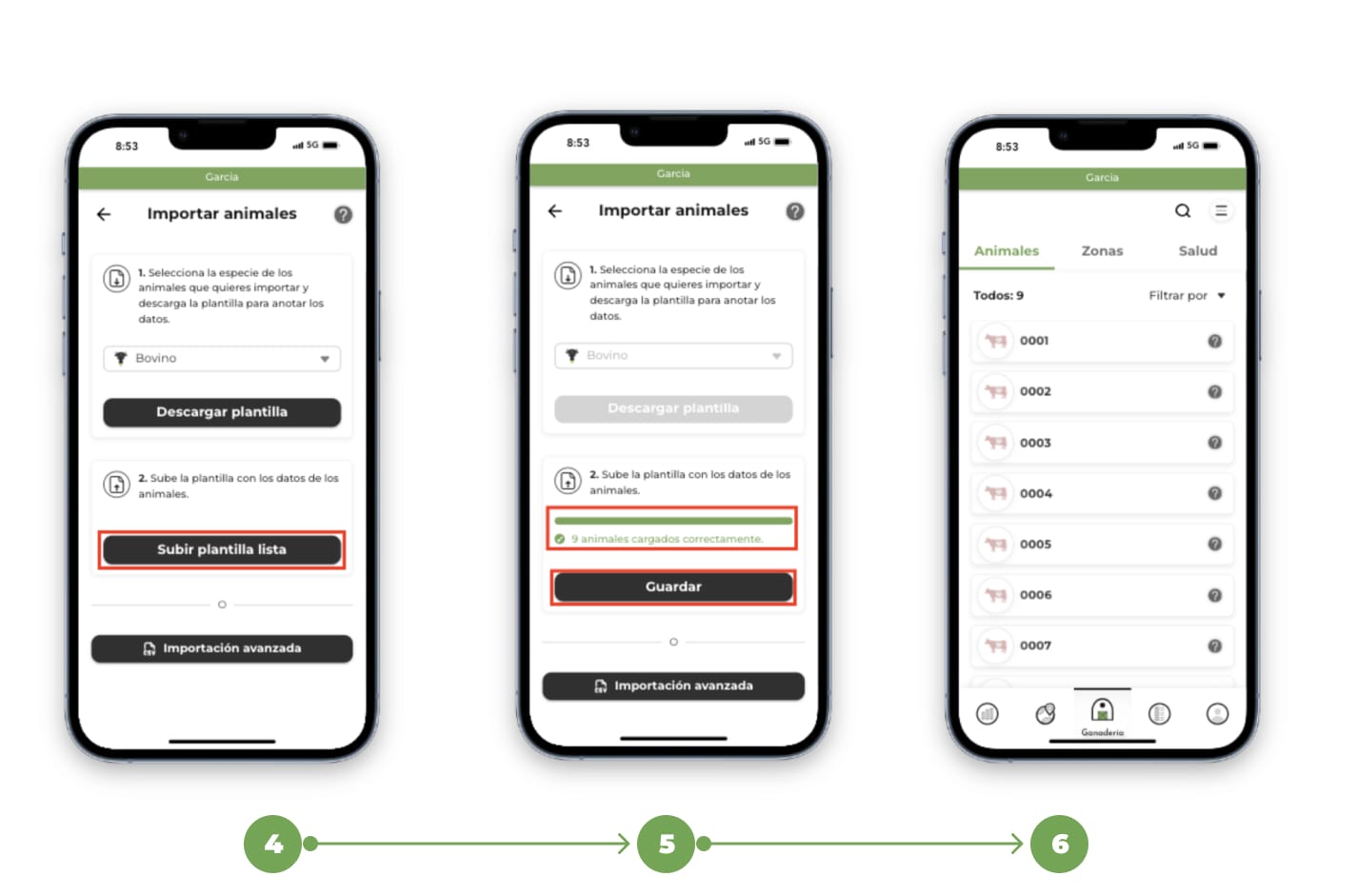
4. Return to the "Import Animals" screen in the app and press the "Upload List Template" button. Select the Excel file where you have entered the animal data.
Review and validation
5. Check that the template has been loaded correctly:
- If the app detects any errors in the data, it will flag them for you so you can correct them.
- Make any necessary corrections to the Excel file and reload it before continuing.
Finish the import
6. When everything is correct, press the "Save" button to finish the import process.
Once the import is complete, you will be able to see all the animals uploaded in the animal list within the app.
For alternative methods, you can follow the links indicated to learn how to register by DIB reader or Individual Registration.