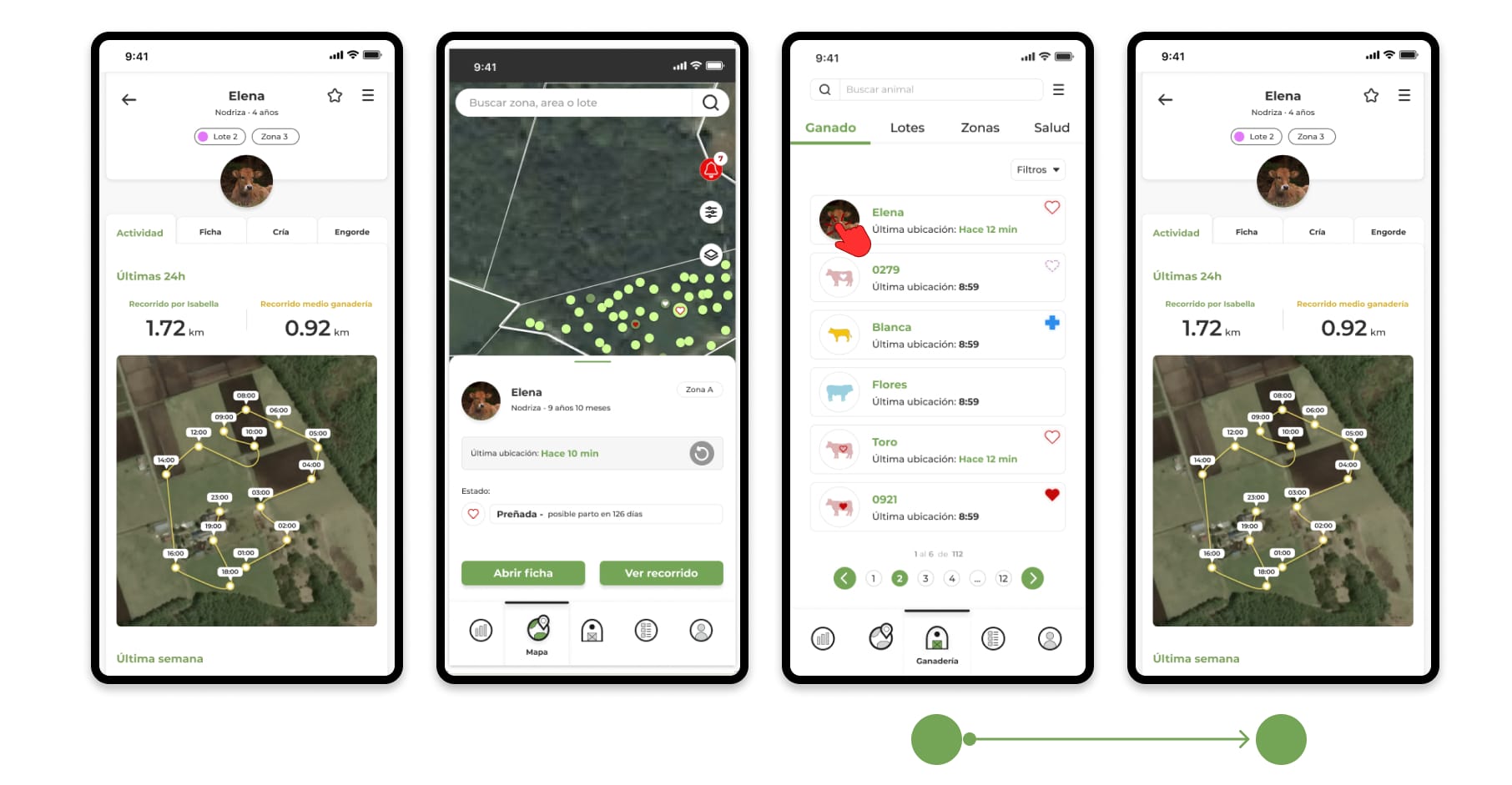

You can add a photo of an animal both from the registration form and by editing the file of an animal already registered in your account. Here's how to do it.
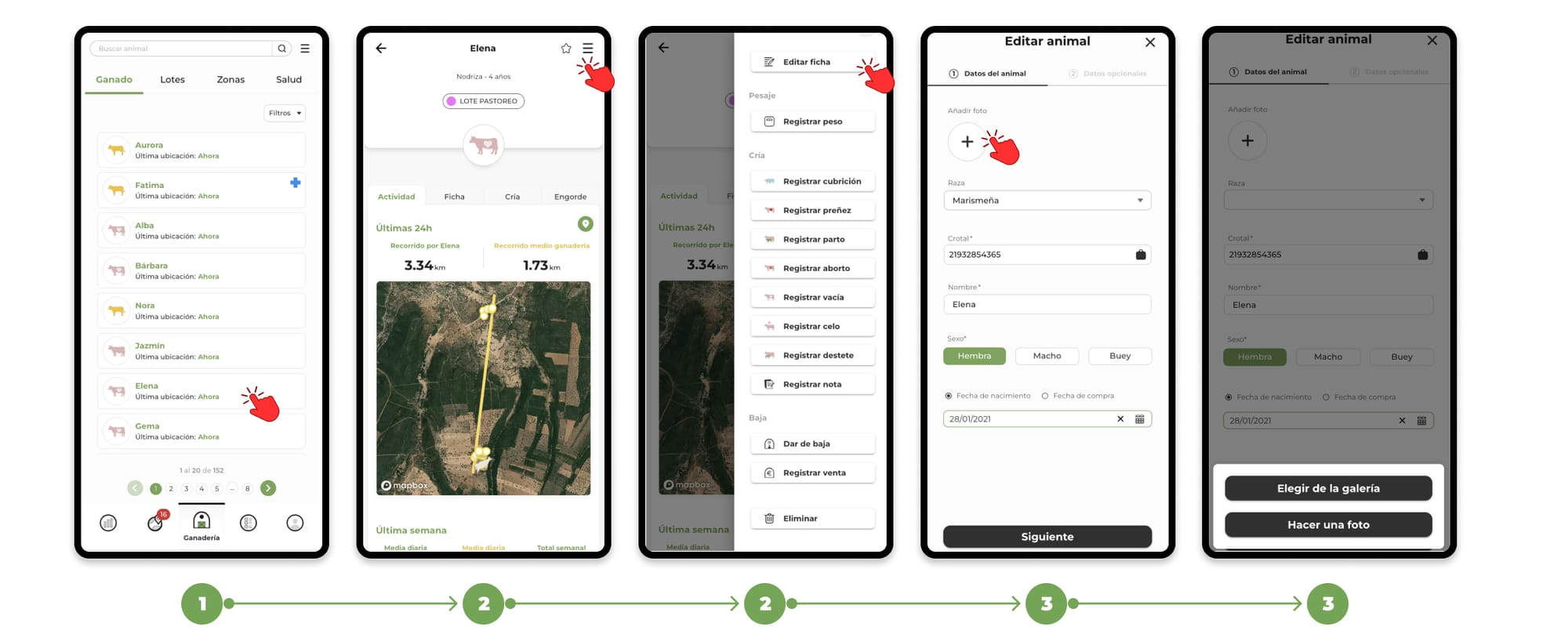
Steps to add a photo to an animal
1. Go to the "Livestock" section and select the animal you want to add the photo to.
2. Once inside the animal's file, click on the "Menu" button located in the upper right corner. In the drop-down menu, select the "Edit file" option.
3. When the form opens, which is the same as the registration form but with the data already filled in for this animal, click on "+ Add photo".
- If you're using a phone, you can choose to take a photo with your camera or select it from the gallery.
- If you're on a computer, you can only select the photo from the gallery.
4. After selecting the photo, you will see a crop square that will allow you to adjust the image. What appears inside the box will be what is saved as a photo of the animal.
5. Once you have the photo set, press the "Save" button and you will be redirected to the animal form where, at the top, you will be able to see the photo you have selected.
6. Tap "Save" again to save your changes and apply the photo to the animal.
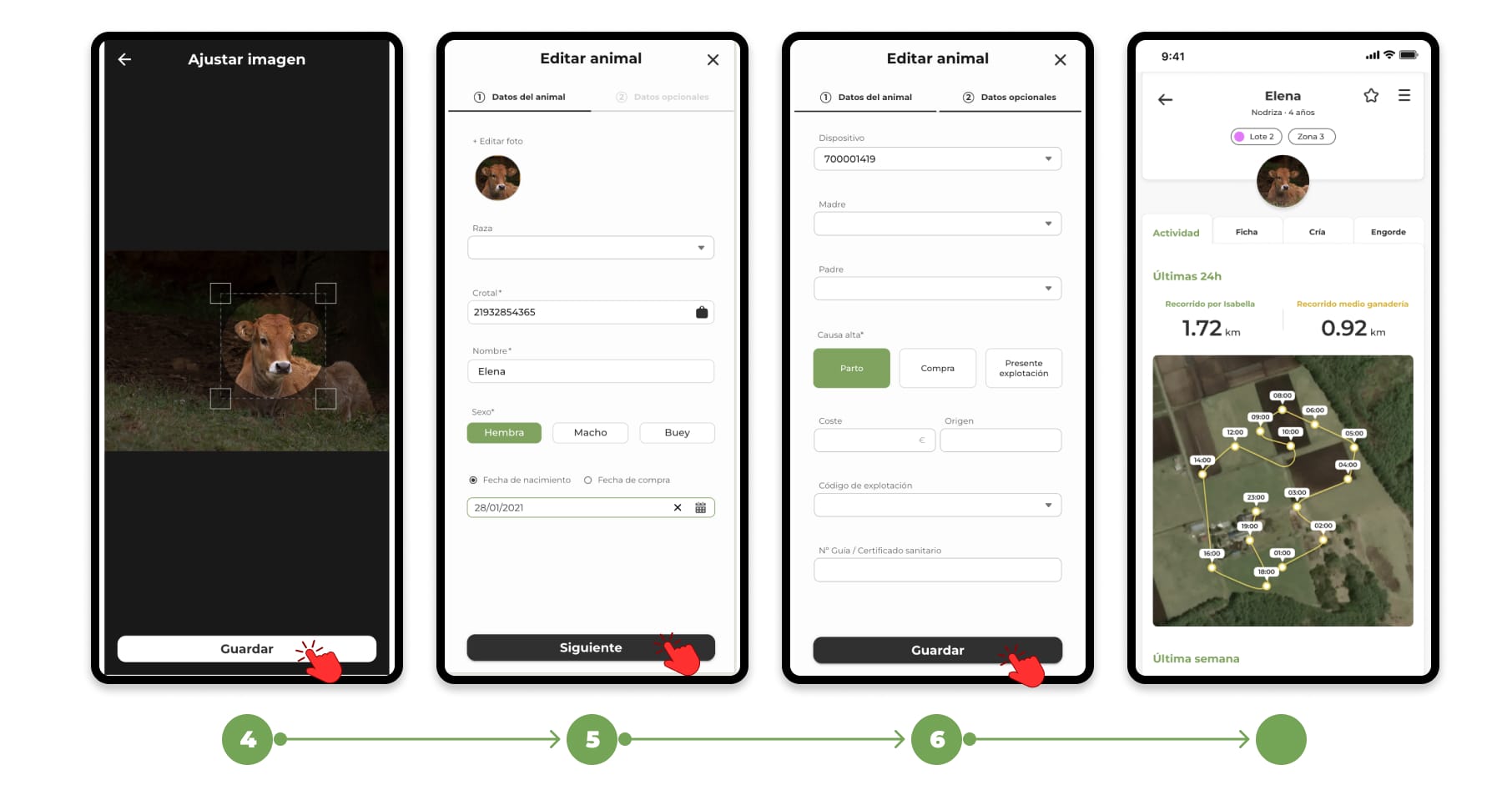
- Now you can see the photo of the animal both in its main file or on the map or in the list of animals
- If you want to see the photo in detail, you can click on the photo to enlarge it.