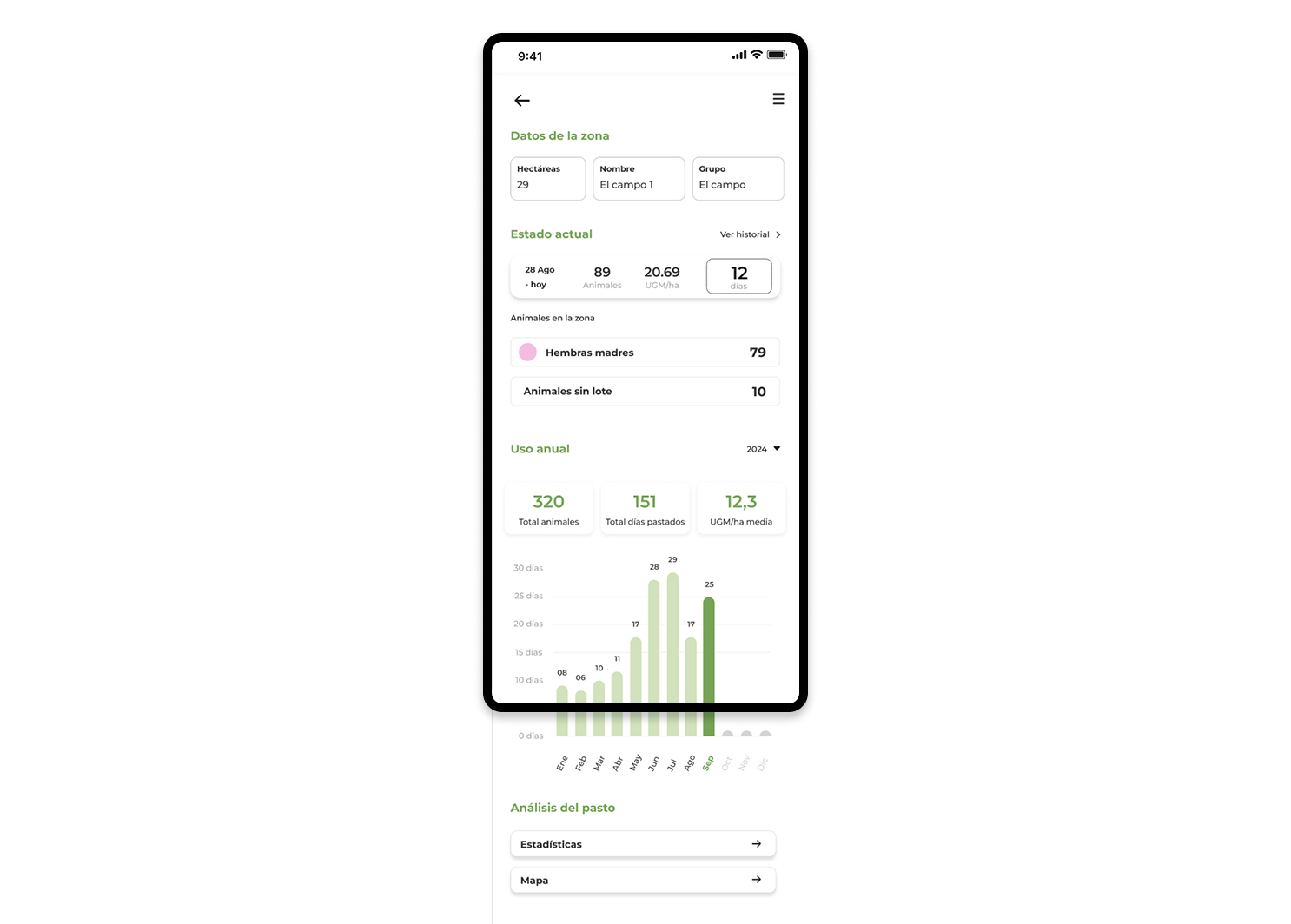

Each area that you have drawn in the application has its own tab that you can access by tapping on it.
Steps to access the file of a zone:
- To enter the area file, you just have to access the list of zones and click on the area you want to see.
- If you are on the map, with the zone layer active, click on an area and you will see that its file will be displayed, if you want to see the complete file you just have to click on the green button that puts view history to open the complete file.
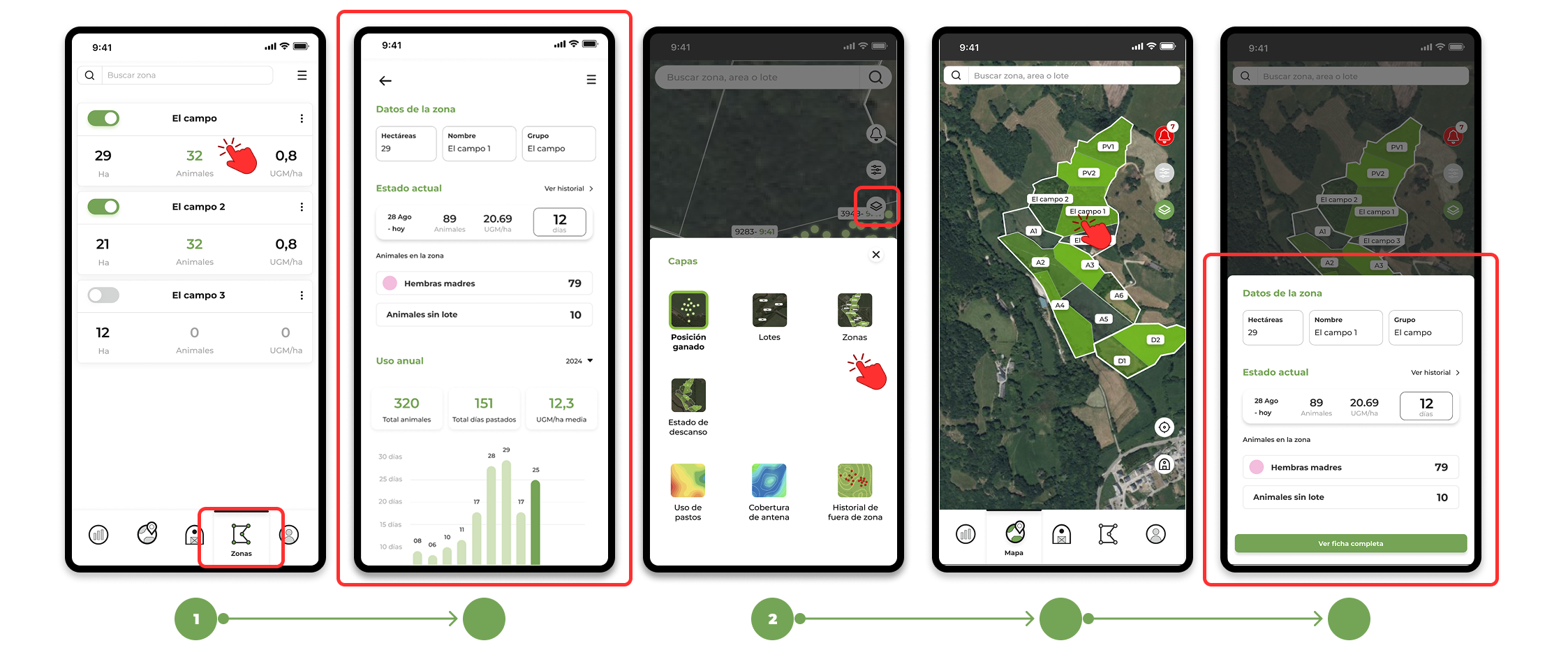
Contents of the area file:
1. Information about the area:
- Hectares: Size of the area in hectares.
- Zone Name: The name that has been assigned to the zone.
- Group to which it belongs: If the zone belongs to a group, the name of the group will be displayed (you can learn how to group zones by clicking here).
2. Use of the area:
- In this part you will be able to see the last status of the zone, which can be "resting" or "in use".
- To view your usage history, tap "View History." This will take you to a detailed list of usage history logs for the zone.
(You can learn more about how grass areas work by clicking here)
3. Annual statistics of the area:
- This section shows an annual graph with the use of the zone throughout the year.
- The months of the year are presented and the total number of days the area has been used each month is shown.
- You can view data for the current year or select previous years to view its history.